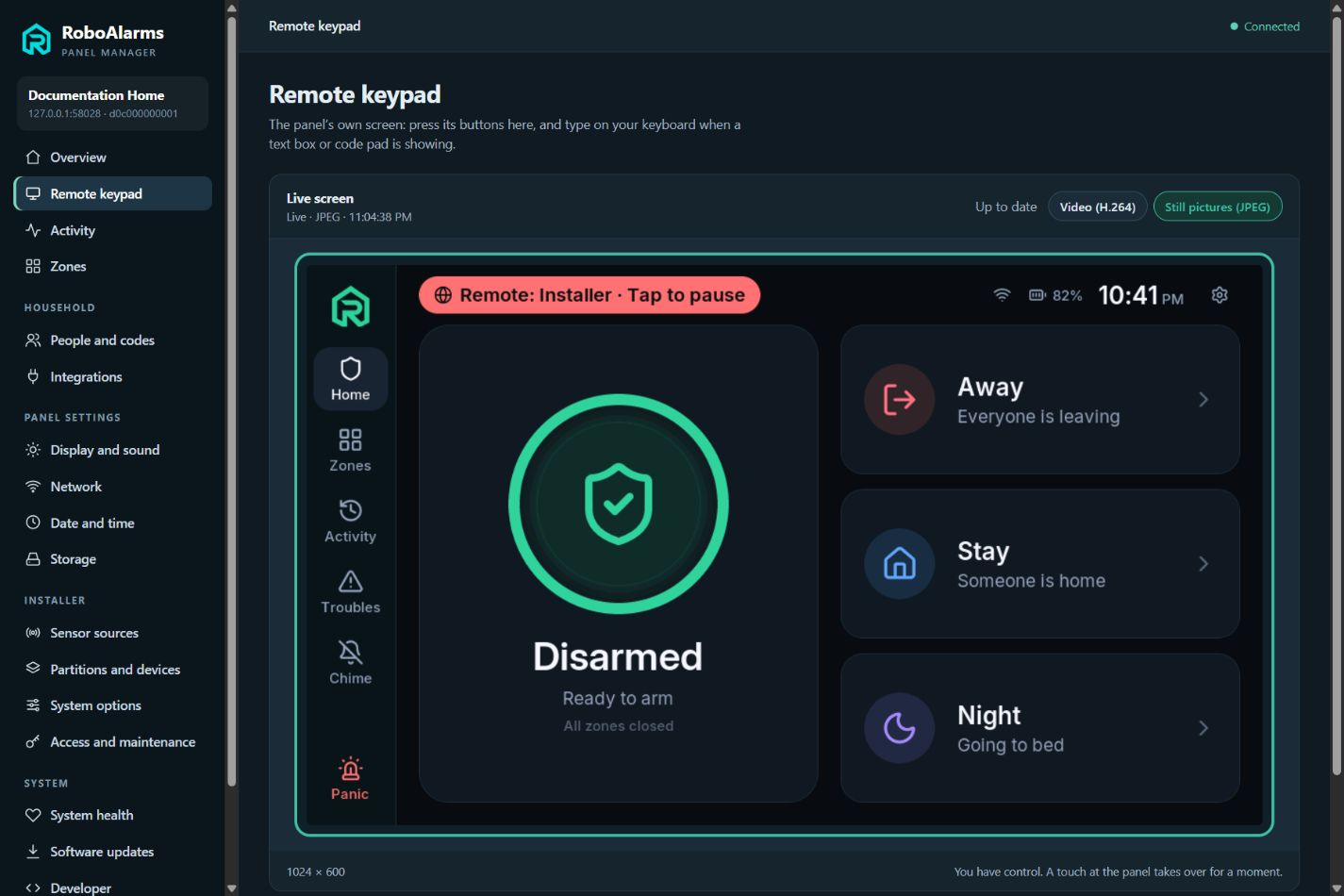
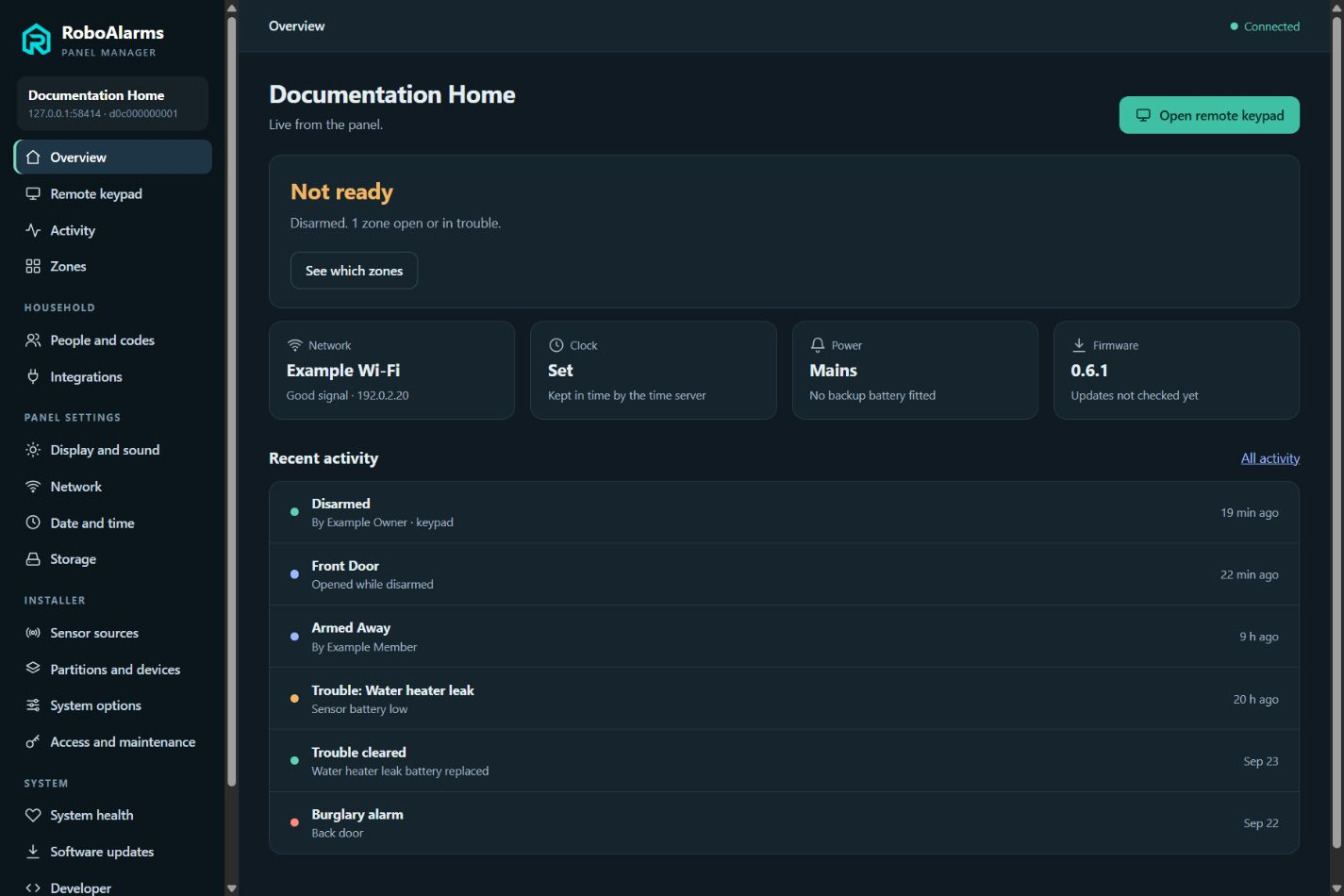
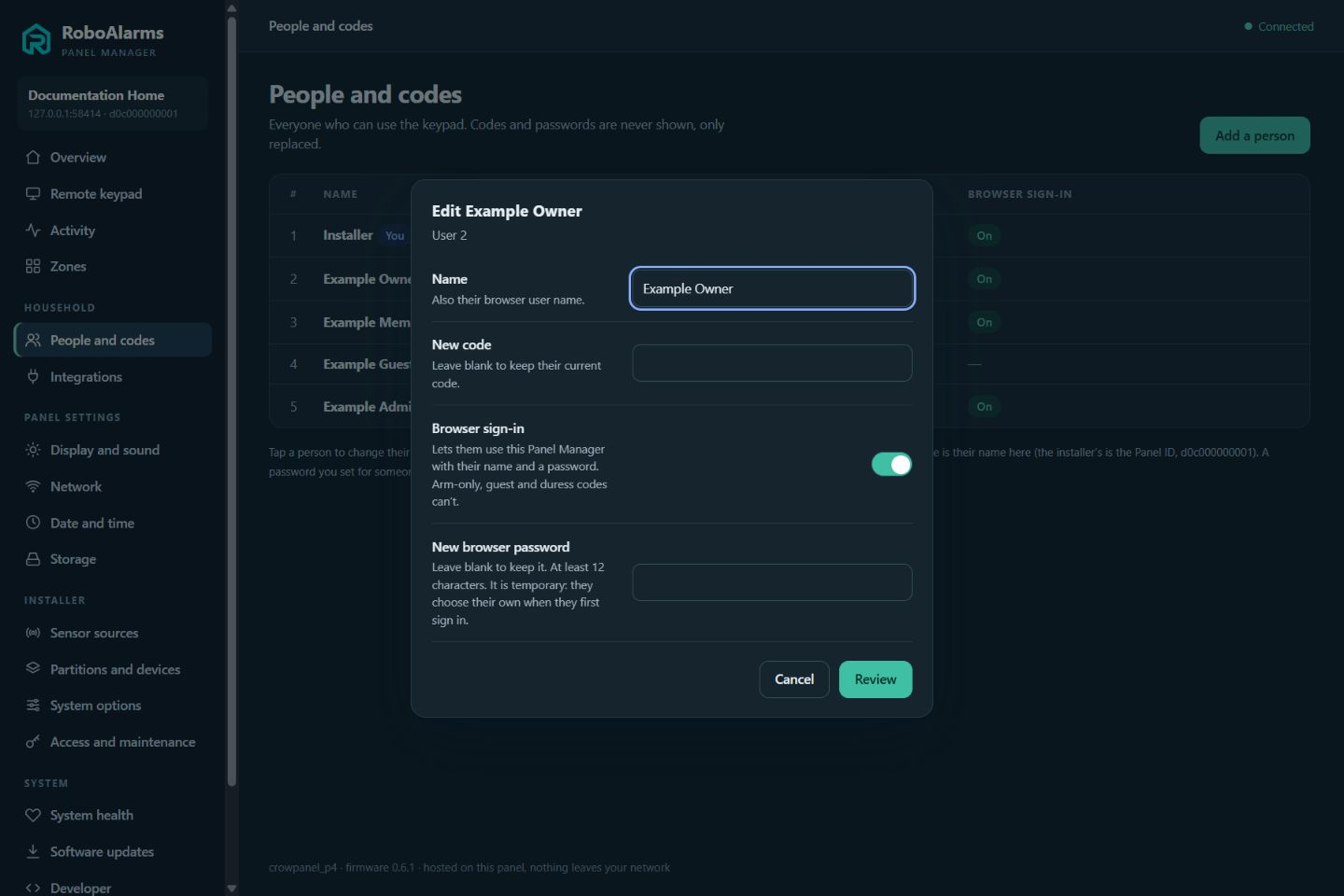
See the same screen as the person standing at the alarm. Use the Remote keypad to walk through a setting together over the phone, or manage the panel from your computer. Panel Manager runs on the panel itself, with no Home Assistant server or cloud account required.
Built into the panel
Open the panel’s address in your browser and sign in. Browser access is enabled by the installer, and each person’s permissions determine what they can see and change. Panel Manager is part of the firmware being prepared for the first public release.
Helping a family member or talking through a setup? The Remote keypad shows the panel’s actual touchscreen, so you can see where they are and work through the next step together.
01 / CONNECT
Bring someone you trust.
An authorized person signs in through a browser on the same network, or through an existing VPN when helping from elsewhere. Their panel account determines the access they have.
Browser access starts off on a fresh installation and is enabled at the physical panel by the installer.
02 / WALK THROUGH IT
See it. Explain it. Show it.
Follow the same menus while you talk. Click to press, hold for a long press, drag to scroll, and type when a text field or code pad is open. You can demonstrate the next step right on the panel.
You are controlling the real panel. Its code prompts and permission checks still apply.
03 / STAY IN CONTROL
The person at home has a say.
A visible banner tells them when remote control is active. Local touch takes priority, and they can tap the banner to pause the session or turn remote access off.
A paused session stays paused until the person at the panel responds.
A bigger view of your alarm
Everyday controls. Room for the details.
A quick status check and a detailed configuration session start in the same place. Clear pages bring together the controls available to your account.
Status and zones
Know where to look.
See whether the alarm is ready, check individual zones, and review the panel’s network, clock and power status. A clear overview helps you start a troubleshooting conversation with the right information.
Use the Remote keypad when you need to see or operate the touchscreen itself.
People and codes
Give each person the right access.
Add household members, choose their roles, replace keypad codes, and enable or disable browser sign-in. A separate browser password keeps signing in distinct from using an alarm code.
Codes and saved passwords are never displayed. When you set a browser password for someone else, they choose their own at first sign-in.
Configuration
Make the system yours.
Adjust display and sound, network and time settings, and optional integrations. Installer access adds zone programming, sensor links, partitions and alarm behavior.
Review the changes before applying them. Network changes include a confirmation window; if the new connection is not confirmed, the panel restores the previous settings.
Activity and maintenance
Understand what’s happening.
Read recent activity, check zone status, inspect system health and storage, and manage software updates. The information and update controls available follow your account’s permissions.
Updates use the panel’s signature checks and rollback protection. Installing a signed file directly is an installer tool that also requires Developer mode.
Browser access starts off on a fresh installation. The installer enables it at the physical panel, then authorized users connect over HTTPS on the local network. An existing VPN can extend that connection when you are away.
Panel Manager needs a working network connection to the panel. It is separate from the optional Home Assistant integration and does not include a cloud relay service.
Keep control with the right people.
The installer manages programming and all users. Masters manage the household within their assigned authority. Standard users see their permitted status and activity and can use the remote keypad.
Configuration is locked while the system is armed or an alarm is sounding. The remote keypad remains available for operation, including disarming with the appropriate code.
Part of RoboAlarms
Built in. Still being refined.
Panel Manager already runs on development hardware. Browser configuration and update flows have been tested on the local panel. The latest permissions and remote keypad refinements have been exercised with automated tests and browser fixtures, with device acceptance continuing.
The images show the current interface with fictional example data. Development stays private until the first public release. For installing the firmware over USB, explore the companion Flasher app.